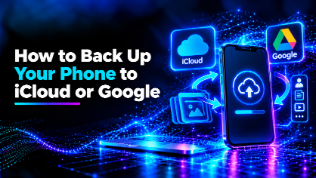
How to Back Up Your Phone using iCloud or Google
Your phone contains a variety of important data, such as photos, contacts, messages, documents and app details. If your phone breaks, gets stolen, or you accidentally delete files, or perform a factory reset, it can be frustrating to lose access to your data. Fortunately, much of your data can be backed up to protect it.
Apple provides an iCloud service which can be used to back up your iPhone. Android users can also use Google Backup to store supported data within their Google Account. This can help you get your important data back if you need to get a new phone.
This guide will show you how to back up your phone, set up automatic backups and how to confirm your data has been backed up.
Why Back Up Your Phone?
A phone backup will allow you to create a copy of supported data that can potentially be restored. This means that you can easily get most of your information back if you have a new phone.
Some reasons why you should back up your phone regularly include:
- Protecting your photos and videos.
- Saving your contacts.
- Saving your messages and app details.
- Easier to transfer supported data to a new phone.
- Reducing the risk of losing data.
Note: Not all files and apps will be backed up. Some will be backed up separately, depending on which service you’re using.
How to Back Up Your iPhone using iCloud
iCloud is a cloud storage and synchronisation service by Apple. Once you’ve enabled iCloud Backup your iPhone will save supported data from your device into your Apple Account. This can be restored if you need to set up a device.
Step 1: Connect to Wi-Fi
Ensure your iPhone is connected to a good Wi-Fi connection. As backing up using the cloud can use a lot of data, it’s generally a good idea to use Wi-Fi.
Ensure your phone has a good amount of battery or is plugged into a charger.
Step 2: Open Settings
Open the Settings app on your iPhone. Tap your name at the top.
Tap iCloud and look for iCloud Backup. Depending on your iOS version the names may vary slightly.
Step 3: Enable iCloud Backup
Enable the option titled Back Up This iPhone.
Once enabled your iPhone will automatically backup when certain conditions are met. These usually include being connected to Wi-Fi, being charged and being locked.
Step 4: Manually Back Up
To quickly back up your phone tap Back Up Now.
Ensure your device remains connected whilst it backs up. This will depend on your internet connection, amount of data and whether it’s your first backup.
Step 5: Confirm Backup
Go back to the iCloud Backup screen. Look for the most recent successful backup date/time.
If your backup doesn’t work ensure you have a good Wi-Fi connection and enough space on your iCloud. You’ll only have a limited amount of free space, so you might need to delete some existing files or upgrade your storage.
Note: If you’re using iCloud Photos or other iCloud services some data will be backed up separately. Ensure these services have finished.
How to Back Up Your Android Phone using Google
Android phones can be backed up using Google Backup. Depending on your Android version and phone manufacturer you’ll have different options.
Step 1: Connect to Wi-Fi
Ensure your Android phone is connected to a stable Wi-Fi connection. Ensure you’re logged into the Google Account you’d like to use.
Step 2: Open Settings
Open the Settings app. Look for Google and select the backup option. This might be under All services or Backup.
On some Android devices you can search for Backup using the search bar within Settings.
Step 3: Enable Google Backup
Open the backup settings and enable the available backup option.
Depending on your device you’ll be able to back up supported data such as contacts, call history, SMS/MMS, device settings and some app details.
Look at the categories on your phone to see what will be backed up.
Step 4: Back Up
If there is an option for Back up now, tap this.
Wait for your phone to back up. It might need an internet connection and a good battery.
Step 5: Confirm Backup
Go back to your backup settings. Look for a confirmation that your backup has completed and the most recent backup time.
Ensure your important data is available within the correct Google services. For example, within Google Photos there is a separate backup option for photos and videos. Within Google Contacts you can enable synchronisation to keep your contacts available.
Not all of your photos, downloaded files or private data within apps will automatically be backed up.
Should I Use iCloud or Google Backup?
This will depend mainly on your phone and which services you’re using.
Use iCloud Backup if you’re using an iPhone and want to restore supported data from your device using your Apple Account.
Use Google Backup if you’re using an Android phone and want to restore supported data using your Google Account.
If you want to back up your photos, this can be done separately. Using iCloud Photos and Google Photos you can synchronise your photos and videos depending on your settings and storage.
Check individual message apps. Apps such as WhatsApp might have their own backup options and storage requirements.
Generally you won’t have to choose between using iCloud or Google. You can use other services to back up specific data, as long as you know where your files are.
Tips to Keep Your Phone Backup Secure
There are a few things you can do to ensure your backup is secure.
- Enable automatic backups so that you don’t forget to back up recent changes.
- Check your cloud storage is not full. This could stop you from backing up new data.
- Ensure you have a strong password for your account (Apple/Google).
- Enable Two-Factor Authentication to give your account an extra layer of security.
- Check your last backup date is recent enough.
- Ensure any sensitive data is protected. Check your account security, recovery options and security options for your backup.
- Consider keeping a second copy of important files. Maybe store them on your computer or external drive.
Before you reset or sell your old phone, ensure you’ve fully backed up and any separate data that needs to be synchronised is available. Some apps may require extra steps to get their data back.
Conclusion
Backing up your phone using iCloud or Google is an easy way to reduce the risk of losing important data. iPhone users can enable iCloud Backup via Settings. Android users can enable Google Backup via their device settings.
To keep your data as secure as possible enable automatic backups, check your available cloud storage and ensure your last backup was successful. Remember that your photos, message apps and other services may need separate backup/synchronisation.
Taking a few minutes to check your backup today can make switching phones or getting your phone back from an unexpected issue much easier.