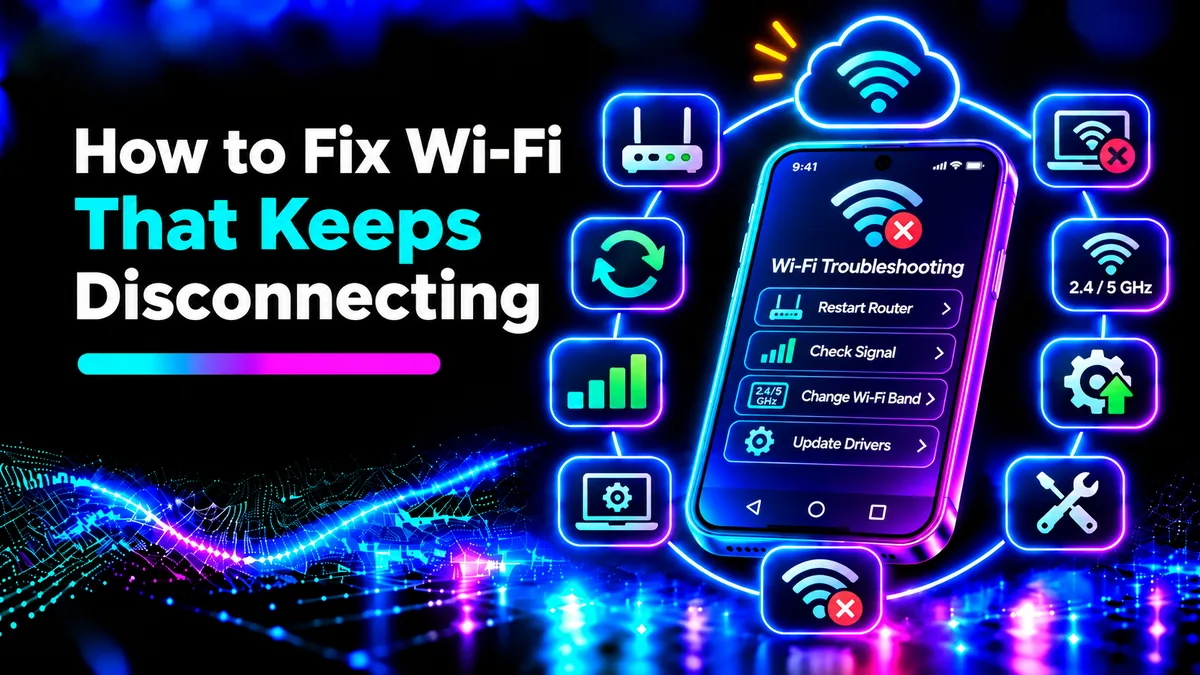
How to Fix an Unstable Wi-Fi Connection
You're halfway through an online lesson and your video cuts out. Your phone shows you're connected to Wi-Fi, but nothing is loading. A couple of seconds later everything reconnects.
There are few more frustrating things than having an unreliable internet connection. Whether it's cutting out on your laptop every evening, your phone losing its connection in the bedroom, or your entire house losing its connection during a video call.
However, there are usually a number of steps you can take to help figure out what is causing the problem before needing to pay to get a new router. Here we're going to look at how to fix an unstable Wi-Fi connection, starting with the easiest solutions.
Work Out What's Causing the Issue
Firstly, it's important to understand if you're losing your Wi-Fi connection completely or just unable to load websites.
If your device is completely losing the connection, it could be caused by a weak signal, interference or your device's wireless adapter. If you're still connected to your router but unable to load websites, it could be caused by an issue with your router and internet connection or with your ISP.
Try opening a website on another phone that is connected to the same Wi-Fi. If both devices are having the same issues, then it's likely to be something with your router or internet. However, if just one device is struggling then start with that.
This quick step can save you an hour of messing with the wrong settings.
1. Restart Router and Device
Start with this basic solution. It can really help with some temporary issues.
Save whatever you are doing and switch your phone/laptop off and on again. Unplug you router and leave it for around 30 seconds. Plug it back in and give it a few minutes for the lights to settle and internet connects.
If you have a separate modem and router then follow the manufacturers instructions for turning it on. Usually you'll want to turn your modem on first. Doing this will cause everyone at home to lose their internet temporarily, so let them know.
Don't press the small reset button. This won't clear your Wi-Fi name and password. Only a full reset will.
2. Move Closer and Position Router
Do you struggle to connect when you're far away from your router? Maybe it works perfectly when next to your router but struggles when you're behind two thick walls?
Wi-Fi signals can struggle the further away you are from the router. Concrete walls, metal cupboards and certain appliances can also cause issues.
Try moving your phone into the same room as your router. If it works then it's likely an issue with positioning or signal.
Ensure your router is centrally placed, in an open space and at a high position. Don't place it in a cupboard or behind a television. Keep it away from any sources of Interference
If possible.
If you have a large home then positioning your mesh system or access point correctly may help more than getting a router with a fancy looking antenna.
3. Try Using 2.4 GHz or 5 GHz
Many routers offer both 2.4 GHz and 5 GHz. If you notice there are two names for your network then try switching between them.
2.4 GHz usually has a greater range and can pass through obstacles but is often busy. 5 GHz can offer faster connections but may struggle with walls.
If you are far away from your router then a stable connection may be best with 2.4 GHz even though it may not have such a great speed test.
Some routers will combine both bands with one network name. It will automatically switch between them. Check your router settings to ensure you don't change any unknown settings. Wi-Fi 6 GHz networks will also have extra considerations for range and compatibility.
4. Forget Wi-Fi Network
Sometimes the information stored can get out of date if you change your password or router settings.
Android:
Go to Settings. Then Wi-Fi or Network & internet. Tap on your network and select Forget.
iPhone:
Go to Settings > Wi-Fi. Tap on the i icon next to your network. Then select Forget This Network.
Windows 11:
Go to Settings > Network & internet > Wi-Fi > Manage known networks. Tap on Forget next to your network.
Select your network and enter the password. Ensure you know the password as you'll need to enter it in.
5. Check Laptop Settings
If your phone is fine but your Windows laptop is losing connection then you should check your wireless adapter.
Open Device Manager. Expand Network adapters and find your Wi-Fi adapter. Right click and select Properties. Some models will have a Power Management tab. If they do then disable the option to allow Windows to turn the device off to save power.
Check Windows Update and your laptop manufacturers website for a suitable wireless driver. Don't use any random sites to download drivers. Don't uninstall a working driver unless you know how to get it back.
Windows 11 will have a troubleshooter in Get Help for Network and Internet. Try this first.
6. Check for VPN or Network Issues
Sometimes you're not actually losing your Wi-Fi connection. It could just be due to a VPN, or browser or temporary loss of internet.
If you are using a VPN then try turning it off for a short while (if appropriate for your work/privacy). See if other apps can access the internet.
Update your phone or computer using the official settings. See if your router has any firmware updates from the manufacturer. These could be helpful to improve stability and security. Be sure to follow the instructions carefully.
Don't change your DNS servers. Just because someone online says it improves your Wi-Fi signal doesn't mean it will. DNS is for looking up names and won't help with poor radio signals.
7. Check for Overload or Interference
If your connection drops when multiple people start streaming then your connection might be overloaded or there might be too much wireless traffic.
Stop any large downloads and try again. If your router shows a list of devices then check if anything unexpected is connecting. Check your router's Wi-Fi password and security settings. Ensure you're using WPA2/WPA3 if available.
Wireless networks close by and some devices in your home can cause interference. If your router has an automatic channel selection within the software then this is often a safer option.
Be cautious. Too many videos can cause buffering but won't cause a single device to lose connection.
8. Reset Network Settings
If none of the simple solutions have worked and you're still having issues with one device connecting to multiple networks then it may be worth resetting your Network Settings.
iPhone:
Go to Settings > General > Transfer or Reset iPhone > Reset > Reset Network Settings. This will delete any saved Wi-Fi networks and passwords. It will also delete some cellular and VPN settings.
Android:
Search for Reset Wi-Fi or Reset Network Settings in your settings. This can vary depending on your manufacturer.
Windows 11:
Go to Settings > Network & internet > Advanced Network Settings > Network reset. This can delete settings for your network adapters and may require you to reinstall any VPN/networking software.
Don't do this yet! Note down any important information relating to your network.
When to Contact Your Internet Provider
If all your devices are losing internet at the same time then check the light on your modem/router showing internet. Check for any outage alerts from your provider. If possible try connecting via a wired connection.
Tell your ISP about the outage, whether all devices are effected and what the lights on your router look like. This will give them a better starting point to help.
If only one phone/laptop is struggling to connect to multiple networks then it may be an issue with the device itself. If your router is constantly overheating and rebooting then it may be time to get it serviced or replaced.
Final Thoughts
An unstable Wi-Fi connection doesn't always mean you need a faster connection. Often it can be fixed by restarting your router, moving it somewhere open or switching to a more reliable frequency.
Work out if it's a specific device or everyone in the house. Try the easy fixes first.
A stable connection will come from figuring out the actual issue. Once your calls aren't cutting out and your pages are loading normally you'll know it was worth it!