How to Convert Image Format Online (JPG, PNG, WebP)
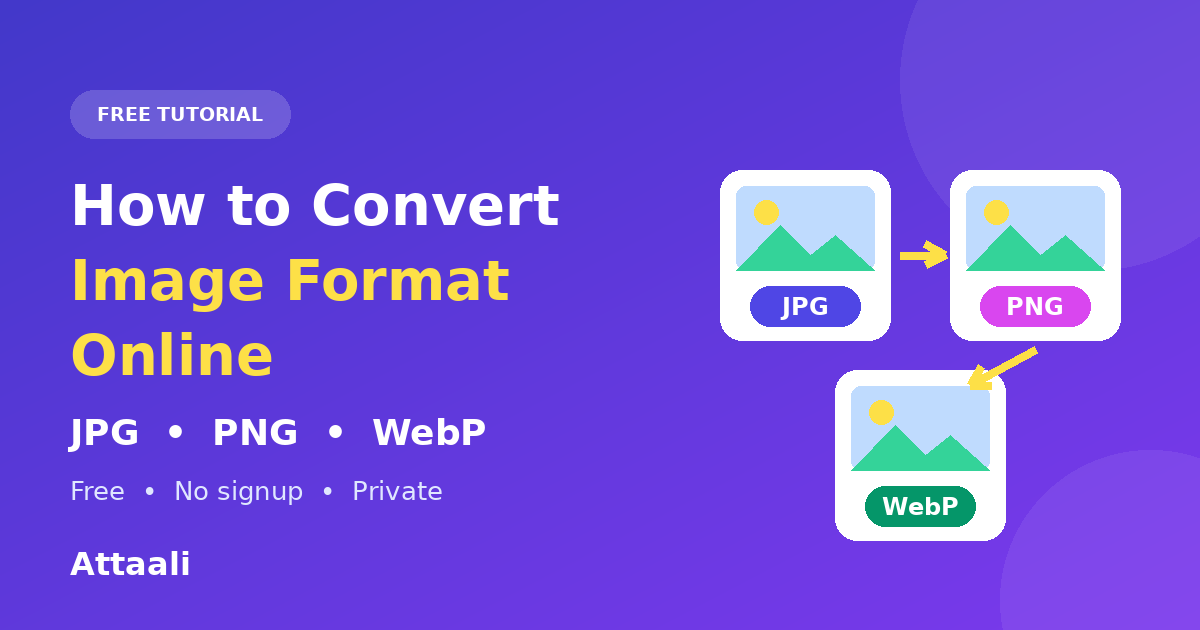
To change an image format online, upload the picture to a free image format converter, choose the format you want (JPG, PNG or WebP), and download the converted file. It takes a few seconds, needs no software and works on both phone and computer.
This guide shows the exact steps, explains the difference between the three most common formats, and helps you pick the right one so you do not lose quality or get an upload error.
Why You Might Need to Convert an Image Format
Websites, forms and apps are often strict about file types. A job portal may accept only JPG, a design tool may need PNG for a transparent background, and a website owner may want WebP to make pages load faster. If your image is in the wrong format, the upload fails or the picture looks different from what you expected. Converting the format solves this without needing Photoshop or any app.
JPG vs PNG vs WebP: Quick Comparison
| JPG | PNG | WebP | |
| Best for | Photos | Logos, screenshots, graphics | Websites and general use |
| Compression | Lossy (smaller files) | Lossless (larger files) | Lossy or lossless |
| Transparency | No | Yes | Yes |
| File size | Small | Large | Often the smallest |
| Compatibility | Works everywhere | Works everywhere | Modern browsers and apps |
In short: use JPG for everyday photos, PNG when you need a transparent background or sharp text, and WebP when you want small files for a website. Some very old software may not open WebP, so JPG is the safest choice for forms and sharing.
How to Convert Image Format Online Step by Step
- Open the free [Image Format Converter] on your phone or computer.
- Click the upload area and choose one or more images.
- Select the format you want: JPG, PNG or WebP.
- Click convert and wait a moment.
- Download the converted images and use them where you need them.
Because the conversion runs in your browser, your photos are not uploaded to a server, which keeps your personal pictures private.
Common Conversions Explained
JPG to PNG
Use this when a tool or design needs a PNG file. Keep in mind that converting a JPG to PNG does not bring back quality that was already lost. The picture will look the same, but the file size usually gets bigger.
PNG to JPG
This is the best way to shrink a large PNG photo. JPG does not support transparency, so any transparent area is filled with a solid colour, usually white. Check the result if your image had a see-through background.
JPG or PNG to WebP
Choose WebP when the image is for your own website. WebP files are often noticeably smaller than JPG or PNG at similar quality, which helps pages load faster.
WebP to JPG or PNG
Some older apps, forms and editing tools cannot open WebP files. If you downloaded a WebP image and it will not upload or open, convert it to JPG for photos or PNG for graphics.
Tips for the Best Results
- Keep the original. Always save the original file before converting, in case you want to try another format.
- Avoid converting again and again. Each conversion between lossy formats can lower quality a little.
- Choose by purpose. Photos suit JPG, graphics with text or transparency suit PNG, and websites benefit from WebP.
- Check the form requirements. If a portal asks for JPG, do not upload a PNG renamed to .jpg. Convert it properly.
- Compress after converting. If the file is still too big, reduce its size with an image compressor.
Do Not Just Rename the File
Changing the extension from .png to .jpg does not convert the image. The data inside the file stays the same, and many websites will reject it or show an error. Always use a real converter so the file is actually re-encoded in the new format.
Frequently Asked Questions
How do I change an image format online?
Upload your image to an online image format converter, choose JPG, PNG or WebP, and download the converted file.
Can I convert multiple images at once?
Yes. With a batch converter you can add several images and convert them together.
Which image format is best?
There is no single best format. JPG suits photos, PNG suits graphics and transparency, and WebP suits websites that want small files.
Will converting reduce image quality?
It can, mainly when you convert to a lossy format such as JPG. Converting to PNG does not remove more quality, but it also cannot restore lost detail.
Is it safe to convert images online?
It is safest when the tool works inside your browser and does not upload your files. Avoid sites that force you to sign up for a simple conversion.
Why will my WebP image not open or upload?
Some older programs and websites do not support WebP. Convert it to JPG or PNG and try again.
Conclusion
Changing an image format is quick once you know which format fits your purpose. Use JPG for photos, PNG for transparency and sharp graphics, and WebP for fast websites. Try the free [Image Format Converter] now and get your image into the right format in seconds.