How to Stop Spam Calls and SMS on iPhone and Android
You finally have a moment to yourself. Your phone rings – an unknown number. You answer and are greeted with a spam call, trying to sell you something.
A few minutes later, another pesky text appears – congratulating you on winning a prize and asking you to click on a link.
Does this sound familiar?
Spam calls and texts can be a huge annoyance. They can be a nuisance coming into your phone without your permission, but sometimes they can be a lot more serious, like scams that could empty out your wallet.
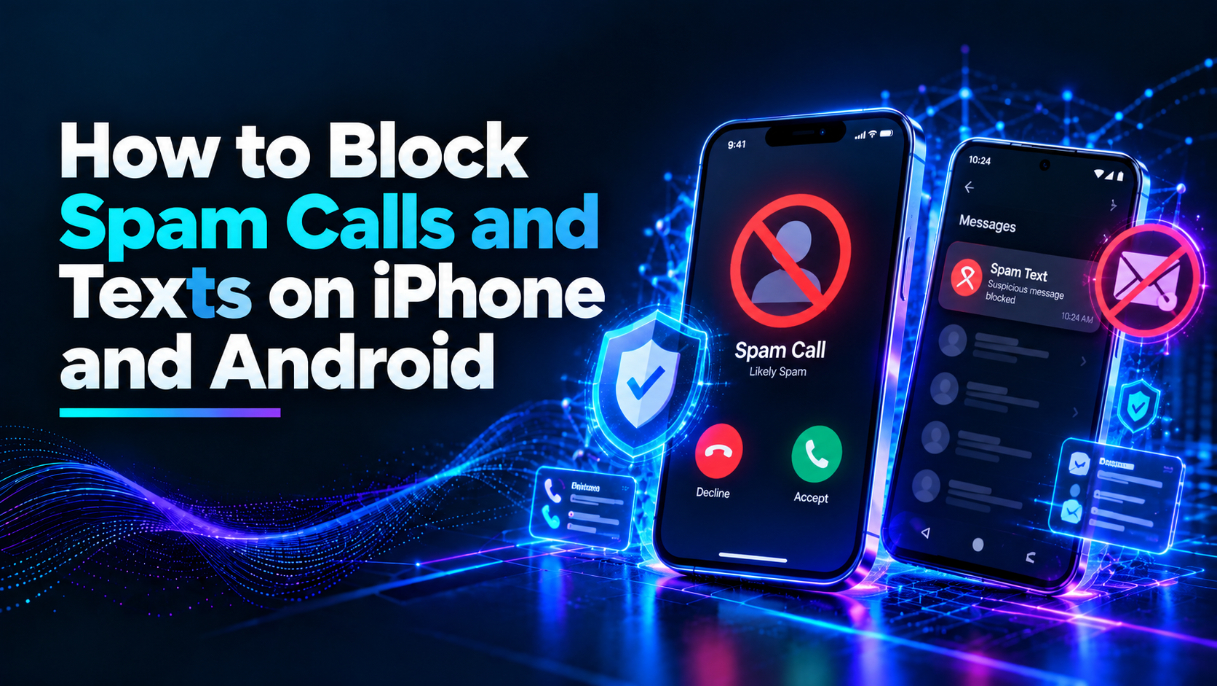
The good news is that both iPhone and Android have inbuilt tools to block spam calls and texts.
Let’s find out how to use them to stop annoying robocalls and unwanted text messages.
What’s the Source of Your Spam Calls and Texts?
Firstly, you may want to know where these unwanted calls and texts are coming from.
Unfortunately, your phone number has likely been given out through some means.
It could be through a website or marketing company, or even a data leak. Sometimes scammers will call random numbers, so it might be difficult to pinpoint where your unwanted calls and texts are coming from.
Spam calls and texts come in many forms:
- Robocalls
- Telemarketing
- Phishing SMS
- Fake delivery messages
- Prize scams – the list goes on!
There is no doubt that spam calls and texts can be a real nuisance. Now, let’s learn more about how to block spam calls and texts.
How To Block Spam Calls on iPhone
Apple has several handy features in the iPhone that allow you to block spam calls.
Silence Unknown Callers
If you are getting annoyed by unknown callers, your iPhone has a handy feature called Silence Unknown Callers.
To enable this, head to Settings > Apps > Phone (or Settings > Phone on older iPone models), and then click on Silence Unknown Callers or the unknown-caller screening option available to your phone model.
Enabling this setting will stop most unknown calls – but it may also keep you from receiving important messages from delivery drivers or employers – or even friends and family if they don’t save their number in your address book
Block a Number
If you receive an unwanted call from someone that you wish to screen out, you have the option to block them.
To do this, go to Phone > Recent Calls and tap the information icon next to their number.
Now, tap Block or Block This Caller and confirm that you want to block this number.
This will stop this particular number from contacting you.
However, if they change their number or call you from a different phone, they will still be able to get through.
Call Identification Apps
iPhone also lets you use call identification apps to identify and block unwanted callers.
To do this, go to Settings > Apps > Phone > Call Blocking and Identification and enable the option for the apps that you wish to use.
Make sure that you only use trusted apps.
Depending on your iOS version, you will see different options under Settings > Phone.
Some of the available options may include spam identification, caller identification, and blocking specific numbers.
How To Block Spam Texts on iPhone
Spam texts often come in the form of links – messages encouraging you to visit a link and giving away your personal information, which can put your finances and personal safety at risk.
Blocking these messages isn’t completely straightforward on the iPhone.
Unknown Senders
You can filter unknown senders, so that they are separated from your other texts.
To do this, go to Settings > Apps > Messages or Settings > Messages for older models, and turn on the option for unknown senders. Depending on your iOS version, it can be found in the Messages section.
Note that this will only separate these messages into a different tab – it will not block them.
Messages from unknown senders often contain scams and spam – so it is vital to avoid any links from these numbers.
Block an Unknown Sender
If you are receiving unwanted texts from an unknown sender, you can block them in much the same way as an unknown caller.
Open up a conversation with the sender and tap the name or number at the top. Now, select the option to report or block them.
Again, this will stop them from contacting you via text – but if they change their number, they will be able to get through again.
How To Block Spam Calls on Android
Android has some handy features that allow you to block spam calls – though how you do this depends on whether you have a Samsung or Google Pixel phone or a different Android-powered device.
Turn On Spam Call Protection
Most Android phones that use Google Phone have a feature that allows you to turn on caller ID and spam protection.
To do this, open the Phone app, tap the 3 dots in the top right, and select Settings and then Caller ID & spam.
From there, you should see an option to turn on spam identification or filtering.
Once you have enabled this, your Android phone should now be able to block some spam calls automatically.
Block a Number
As with the iPhone, you can also block a specific number from contacting you on your Android phone. To do this, open the Phone and go to Recent Calls.
Select the number that you wish to block and go to the options – select Block or Block/report spam depending on your phone.
You should confirm that you want to block this number – this will stop them from contacting you directly.
However, if they change their number or call from a different device, they will still be able to get through.
Spam Protection for Samsung
If you have a Samsung Galaxy device, you will also be able to use a feature similar to the above.
Open the Phone app and select Settings > Caller ID and spam protection. If you have this feature enabled (and it should be available on most Galaxy devices), you should be able to turn it on.
This will allow your device to identify spam numbers and potentially block them automatically.
You may also find an option to block specific numbers, as well as private or unknown callers.
How To Block Spam Texts on Android
Google Messages makes it simple to block spam texts.
You can enable this on any Android device using the Google Messages app.
How To Enable Spam Protection
Firstly, open the Google Messages app and select your profile image or the three dots in the top right.
Now, select Messages settings and then select Spam protection (if this option is available).
Select the option to Turn on spam protection – this will allow Google to automatically remove spam messages from your inbox.
Note that the location of this option may vary slightly depending on your device.
Block and Report Spam Messages
When you receive a suspicious message, you can report it by opening the conversation, tapping the three dots, and selecting Block & Report Spam.
This will stop this sender from contacting you and can further help Google to identify spam numbers.
Should You Use Third-Party Spam Blocking Apps?
iPhone and Android both have excellent built-in caller identification and SMS spam protection features.
For most people, the built-in caller ID and spam protection should be enough.
However, there are also some third-party apps that offer similar protection with slightly different features.
The downside of using these is that they may ask for access to your personal information, so it’s important to check any permissions before you install them.
The Best Ways To Prevent Spam on Your Phone
Blocking spam messages and calls is a great way to stop unwanted communications, but what can you do to prevent any future spam?
Here are a few handy tips that can help prevent future spam calls and texts:
- If you are given the choice, do not share your number with websites or companies.
- Avoid clicking on any links within unexpected SMS messages.
- Never share verification codes with unknown callers.
- Do not reply to any suspicious calls or texts, especially if they ask you to reply with a code or confirmation.
- Keep your phone and any applications updated.
- Report any spam calls or texts that you receive.
- If you receive a message that appears to be from a company – a bank, say – head to their website or contact them through a verified method to confirm that they sent the message.
- Be wary of suspicious numbers – if they call you, don’t give them any information.
Also, take caution when blocking all unknown callers – you may miss out on calls from legitimate businesses or even friends and family who don’t have their numbers saved in your address book.
Unfortunately, there is no foolproof way to completely stop spam calls and texts.
However, with the features on your iPhone and Android phone and these handy tips, you can significantly reduce spam and unwanted calls. If you are still being harassed by spam, you can always go to your cellular service provider for extra help.
Final Thoughts
Spam calls and texts can be extremely annoying – they can turn your peaceful home life into a constant stream of unwanted interruptions.
Fortunately, you can use built-in spam protection features on your Android or iPhone to stop these annoyances.
You may want to enable call screening features, block unlisted numbers, or enable SMS spam protections.
There really are several easy ways to stop spam calls and texts from being a major annoyance.
Now that you know how to block spam calls and texts, you can stop unwanted interruptions, protect yourself from scams, and enjoy a quieter and more secure smartphone experience.
After all, not every unknown call needs to be answered.