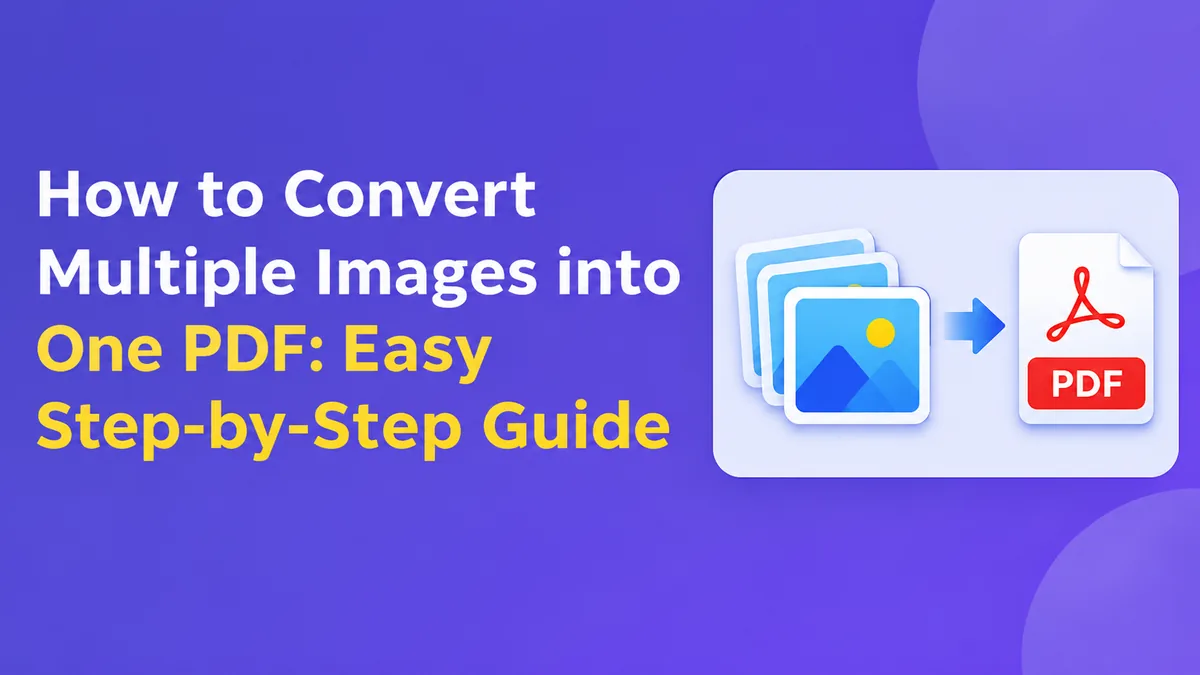
How to Convert Multiple Images into One PDF: Easy Step-by-Step Guide
Combining several images into one PDF makes it easier to share documents. If you have multiple photos, for example, receipts, handwritten notes, certificates or scans you can easily organise all of them into one file. This will make it easier for whoever you’re sharing it with to see them in order and can be printed or saved easily.
You won’t need any advanced editing skills to do this as most computers and smartphones will have PDF creation features. Alternatively, there are plenty of online options to convert images into PDFs. How you create your PDF will depend on your device, how many images you have and if they are confidential.
Why Combine Multiple Images Into One PDF?
Having one PDF means that your documents will be easier to organise. Having all the relevant pages together can be helpful for applications, assignments, business documents and personal documents. PDFs can be opened on almost all modern devices. They don’t require the person viewing to have an image editing app.
Having your images in a PDF can help you organise the order of your pages. You can include a title page, supporting evidence and extra evidence. This makes your document look more professional.
However, it doesn’t mean that your images will be clearer or smaller. Be sure to start with clear images.
Preparing Your Images
Before you begin converting your images, make sure they are ready. Gather all the images you would like to include in one folder. Remove any duplicates and ensure any landscape images are rotated so they are portrait. If your images are of paper documents, make sure the unwanted background has been cropped out and all four corners are visible.
Rename your files so they are in the order you would like them to be. Some tools will sort your images by name so it is best to number your files, for example: 01-cover, 02-page, 03-receipt.
Take note of the image type you have. JPG/PNG images are commonly used for photos. PNG is a good option for screenshots and crisp images. Many tools will support both JPG and PNG. However, some may not support HEIC/WebP or other formats. If your tool isn’t accepting your images, convert them to a JPG or PNG.
How to Convert Multiple Images to a PDF Online
Using an online JPG to PDF or image to PDF converter can be a quick option. Whilst many sites will have a similar process, the buttons and options may differ.
Open up a reliable image to PDF converter. Click ‘Upload Images’ and select all the JPG/PNG files you would like to include. Some sites will allow you to drag your images into the section.
Once your images have loaded, arrange them in the correct order. If you have specific page sizes, orientations or margins required, look for these options. Once done click the convert/combine button and download your created PDF.
Before sending, open up your PDF. Ensure all images are included and in the correct order. Make sure no text has been cropped out.
If your images are confidential, such as ID, bank statements or medical documents, you may wish to use an offline tool. Uploading your files could pose a risk to your privacy. Ensure you know how they will protect your data and what happens to it once deleted.
How to Convert Multiple Images to a PDF (Windows)
Microsoft Print to PDF can be used to create a PDF from multiple selected images. This can be found on Windows.
Ensure your images are in one folder and the files are named in the order you would like. Right click on your images (in File Explorer) and click print. If you have Windows 11, you may need to click ‘Show more options’.
Select ‘Microsoft Print to PDF’ as your printer. Choose the paper size and layout you would like. Carefully check the preview, especially if your images aren’t the same size. If you have images that aren’t filling the frame, this can cause them to get cropped. You may need to adjust your fit.
Click print and choose a file name and save location. Windows will create your PDF. Open your PDF and ensure your pages are in the correct order. If your images aren’t ordered correctly, rename your files with numbers and repeat the process.
How to Convert Multiple Photos to a PDF (Mac)
You can use the Preview application on your Mac to combine your images. This is helpful as you can check your pages are in the correct order.
Open your first image in Preview. Click view and enable the thumbnails sidebar. Drag your other images into the sidebar. Arrange them in the correct order.
If you want all your images included, highlight all your thumbnails. Click File and Print. In the print menu, click PDF. This will allow you to save your pages. Depending on your macOS version, there may be other options available.
Check your document. Ensure your images have been added as separate pages. Preview also allows you to easily rotate your pages.
How to Convert Multiple Images to a PDF (Android)
There are a few options available on Android phones. These vary depending on your phone manufacturer and what apps you have. Some phones with a gallery or file manager will have a print or save as PDF option. Some will only allow you to print one image at a time.
Select your images in your gallery or files app. Click share/add and look for the print option. If your phone can print multiple selected images, click ‘Save as PDF’ in the print menu. This will save your document.
If this option isn’t available, look for a reputable PDF app that allows you to combine multiple images. Add your images, organise them and choose your output settings. This will export a PDF. Ensure you know what permissions and privacy settings the app uses, especially if you are using it for personal documents.
If your images are of paper documents, you may want to use a document scanning app to improve the quality.
How to Convert Multiple Images to a PDF (iPhone)
Often you can create a PDF using the Files app. Firstly, save your images into a folder. In your Photos app, select your images and click save to files.
Open up your folder in Files. Click the ‘More’ button and select your images. Click the menu and select create PDF. This should save your document.
Ensure your images are named in order before creating your document. Open your document and ensure all your pages are correct. If your iPhone isn’t showing the option you want, you may want to use a compatible PDF app or a print to PDF option.
Top Tips to Create a Clear and Professional PDF
Ensure your images are high enough quality. A screenshot may look fine on your phone but could be difficult to read when printed. If taking photos of documents, ensure there is even lighting and your phone is held steadily. Avoid any shadows over the text.
For standard letters and forms, set your orientation to portrait. For wider charts or images set it to landscape. Keeping your pages the same size can make your multi-page PDF easier to navigate. However, if you want to keep your original content, having varying page sizes may be better.
Be careful with large images. This can cause issues with emailing or uploading your PDF. Reduce the size of large images or use a trustworthy tool to compress your PDF. Don’t over compress your PDF as this can make small text hard to read.
Give your file a descriptive name. For example: Job_Application_Documents.pdf.
Issues & Fixes
If your pages aren’t in order, rename your images with numbers at the beginning and recreate your PDF. If your image is being cut off, change your layout or scale settings. Ensure your whole image is visible.
If your PDF looks blurry, check your original files. There is nothing you can do if your images aren’t clear. Take new photos or use higher quality images.
If your file is too large, try reducing the size of your images. You can apply a mild compression to your PDF. If you are having trouble uploading, ensure the site accepts your image type and the file size.
Final Thoughts
Knowing how to convert multiple images to a PDF can save you time. Using an online converter can be a quick option for general documents. However, there are useful tools available on Windows, Mac and mobile devices. Choose whichever suits your device and privacy requirements. Be careful to organise your pages and always check your final PDF.