How to Convert JPG to a PDF File (under 1MB)
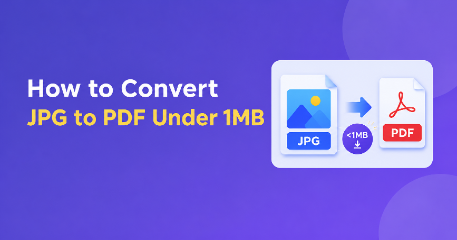
Converting your JPG to PDF isn’t too difficult. However, the challenge is ensuring your final file is under 1MB. This can be a challenge if you have high-resolution images or scans. Many job application, education and online registration sites will have file size limits. If your file is above the limit, you might be unable to upload your file.
Luckily there are no advanced technical skills needed to fix this issue. You can use an online converter, image compression tool or existing software on your device to convert JPG to PDF under 1MB.
Within this guide you’ll find some easy methods to convert your images to a smaller PDF file.
Why Would You Want to Convert JPG to PDF Under 1MB?
You may want to convert your JPG to PDF as your file could be a photo or scan. However, certain websites will only allow you to upload a PDF file under a certain file size.
Some common reasons you want to convert your file to a PDF under 1MB would be:
Applying for a job: Some recruitment sites may ask you to upload educational certificates, photos or ID using a PDF file.
Applying to an education facility: Schools, colleges and universities may have file size limits on their online application.
Government forms: Online registration systems may ask you to upload scanned documents under a certain size.
Email attachments: Smaller files are easier to send.
Storing documents: Compressed files take up less space on your device.
As long as your file meets the limits, your file shouldn’t be too grainy.
Convert JPG to PDF Under 1MB Using an Online Tool
One of the easiest ways to convert your JPG to PDF under 1MB is to use an online tool. Most online tools will allow you to upload your images, choose the order, convert to PDF and download your file.
Follow the steps below.
Step 1: Choose your JPG Images
Open up an online JPG to PDF converter in your browser. Select the images you wish to convert.
Ensure your images are clear, cropped and orientated correctly.
Step 2: Order Your Images
If you are converting multiple images to one PDF, order them correctly.
For example, if you’re uploading educational documents, you may wish to order your certificates in order. This will make your final file easier to understand.
Step 3: Choose the File Size Limit
Look for a compression or maximum file size option. Choose the 1MB option if available.
Some tools will automatically reduce the quality or resolution of your images to fit your chosen limit.
Step 4: Convert JPG to PDF
Select the ‘Convert’ or ‘Create PDF’ option. The tool will process your images.
Your selected JPG files will be combined into one PDF.
Step 5: Download and Check
Download your new PDF file and ensure it is under the size limit. Open the file and ensure all pages are readable.
If your file is still too large, you can use another compression option.
Reduce the Size of Your JPG File
Sometimes your original images are too large to fit under 1MB. Try some of the following.
1. Resize Large Images
High resolution images usually have more pixels than you need for standard uploads. Resize your images to a more suitable size.
However, don’t go too small as you may lose detail in your images, such as signatures and printed text.
2. Reduce Image Quality
JPG files are compressed. You can reduce the quality slightly using an image compression tool.
Choose a medium compression level to reduce the file size but not affect any important information.
3. Crop Unwanted Areas
Crop out any white space, borders and unwanted areas.
This will make your images clearer and reduce the amount of data.
4. Be Careful When Converting Multiple Files
When converting multiple images to one file, the overall size will depend on all images.
If you have a lot of large photos, you may wish to compress them first.
Convert JPG to PDF Under 1MB Using Windows
You can create a PDF file on your windows device without downloading anything.
Open the folder with your JPG file in.
Right click and select Print.
Choose ‘Microsoft Print to PDF’.
Choose a suitable paper size and layout.
Adjust your image positioning if needed.
Click print and choose where to save your file.
This will convert your JPG file to a PDF. However, it may not be under 1MB.
If your file is too large, open it in a PDF compressor and reduce the file size.
Ensure Your PDF is Under 1MB
Always check the final file size after converting your images.
Windows:
Find the downloaded PDF file.
Right click.
Select Properties.
Look at the size.
Android:
Open your file manager and find your PDF. Look at the file details.
iPhone:
Open the Files app and long press your file. Select Get Info.
If you file is over the required amount, compress it further or reduce the size of your original images and convert again.
Tips to Ensure Your PDF is Under Size but Still Clear
Whilst you want your file to be under size, you don’t want to lose clarity in your document. If it doesn’t meet the requirements as the text is unreadable, it may be rejected.
Some tips to ensure your file is under size but still clear include:
Use clear images with good focus.
Crop out any unwanted background.
Don’t go too high on resolution.
Use medium compression.
Ensure the orientation is correct.
Ensure signatures, stamps and important text can be seen.
Open your final file.
Remember, some systems may see 1MB as 1,000KB or 1,024KB. To ensure you don’t have issues uploading your file, try to keep your file slightly under 1,000KB.
Conclusion
Overall converting your JPG to PDF under 1MB is easy. Whether you’re uploading job documents, educational certificates, ID images or scans, you can use an online converter or windows print options to create a smaller file.
Start by choosing clear images, crop out any unwanted areas and only reduce the quality of your images. Once converted, ensure your file is under size.
With these simple steps you’ll be able to create smaller PDFs to meet your upload requirements.