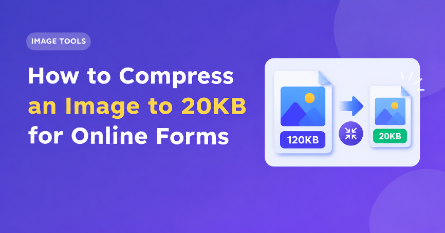
How to Compress Image Files to 20kb for Online Forms
When completing an online form, often you will be required to upload an image file which needs to be a certain size such as 20kb. This can be an issue if the image you wish to upload is significantly larger than this file size.
The good news is there are many free online options to compress your image to 20kb. However, it is important to consider what format you are uploading, the size of your image and the quality of compression.
This article will show you how to compress images to 20kb, how to prepare images for online forms, and avoid any common pitfalls!
Why Online Forms May Require Images to be 20kb
There are often restrictions on image uploads on online applications to ensure the site runs quickly and doesn’t use a lot of storage. Smaller file sizes are also often easier to upload over a slow internet connection.
Often you will find that you need to upload an image which is 20kb for:
- Admission/University applications
- Job applications/recruitment forms
- Exam/Registration forms
- Passport sized pictures
- Digital signatures
- Scanned documents/images
Always check the guidelines of the website you are uploading to. Often they will state a maximum file size (20kb) to make sure your image is not too big. Usually this means that an image under the 20kb mark will be fine.
How to Compress an Image to 20kb Online
To compress your image to 20kb you can use a free online image compression tool. While each tool will be slightly different, the process is generally similar.
Step 1 – Select Your Image
Find the image you want to upload on your device (computer or mobile). Double check that you have selected the correct picture/signature/document.
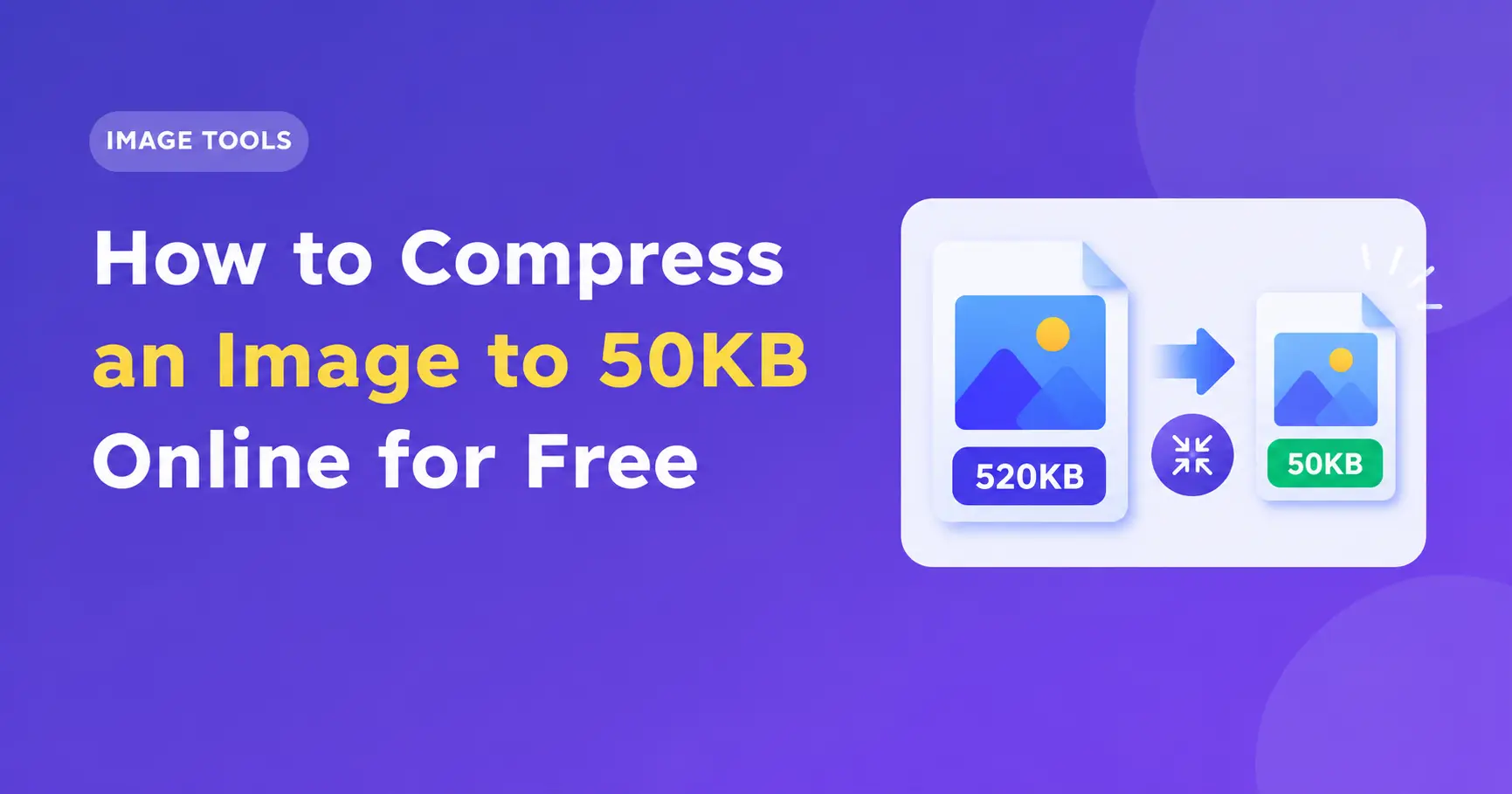
Before you begin, you should check how large your image currently is. If your image is 500kb like the example above it will need to be significantly compressed to meet the 20kb requirement.
Step 2 – Use an Online Image Compressor Tool
Use an online image compression tool which is reputable and can support your image type. Look for one which will allow you to set the compression quality or desired file size.
Some will automatically compress your image, while others allow you to enter the size you want. If your tool does not allow you to set it to 20kb exactly, you will need to adjust the quality and size manually.
If the document is sensitive you may want to use an offline tool.
Step 3 – Upload Your Image
Upload your image onto the tool you have selected. Once the image has been processed.
If your tool supports multiple formats ensure that your original file type is supported. Common file types are .JPEG/.PNG however some application portals may only support certain file types.
Step 4 – Set Your Compression Options
If your tool allows you to set the desired file size, enter 20kb. If you only have a quality option, slowly reduce this until your image reaches the correct size.
You may also need to reduce your image size. If you have a large photo this can often be reduced by reducing the width and height. Ensure that you can still see the main focus of the image clearly.
Do not reduce your quality too much. This can cause your image to become blurry, your signature may be hard to read and the text may be unreadable.
Step 5 – Download and Check Your Image
Download your compressed image. Check the size and open it. You may need to reduce the size or quality further if it is still larger than 20kb. If it is significantly smaller but looks blurry, increase the quality.
Double check that the image meets the size, format and dimensions required by the portal.
What Image Format Should I Choose?
The format of your image can really affect how small you can get it.
JPEG/JPG
JPEG can be a great go to for images. This uses lossy compression which reduces file sizes. This can be great for passport sized images and images with lots of colours.
However, this can cause the quality of your image to reduce if you compress it multiple times. Be sure to keep a copy of your original image.
PNG
PNG can be useful for graphics, transparent images and some screenshots. This can help keep sharp edges and text. However, if you are uploading a photo it may remain large.
If your application allows JPEG and you are compressing a photo, it may be worth converting a copy to .JPEG.
WebP
WebP can be great for compressing many types of images. However, not all application portals will support this. Always ensure you follow the guidelines of the website you are uploading to.
It is not always best to go for the smallest file type. Ensure you are using a format to meet the requirements of the portal and your image is still clear enough to be verified.
Top Tips for Compressing Images
Sometimes compressing an image can be tricky and it can be hard to get it down to under 20kb. Here are some tips to help you:
- Crop your image – If you can crop your image remove any blank areas or extra space.
- Reduce the size – If the portal requires a specific size use this.
- Use the correct format – If you are compressing a photo .JPEG often works well. If you are compressing a basic graphic .PNG may work better.
- Don’t over-compress – Always use your original image.
- Ensure you can still see faces, signatures and key parts of your document.
- Keep your original image – In case your image becomes blurry, keep a copy of the original.
- Follow the guidelines – Some forms will have specific requirements such as a certain ratio, pixel size, background colour and/or file extension.
Common Issues When Compressing Images to 20kb
Still Too Large
Try reducing the size and/or quality of your image. If your tool allows you to set the file size do this and check the file you have downloaded.
Blurred Images
You may have reduced the quality too much or your image is too small. Go back to your original image and try to adjust the size and quality.
Not Accepted on the Website
Sometimes you may find that your compressed image isn’t accepted. You may need to use .JPEG instead of .PNG, a certain pixel size or a maximum file size.
Check the full guidelines.
File is 20kb But Not Accepted
Check the size, extension and size of your image. Ensure the website mentions KB or something else. If they specify a maximum size of 20kb aim to be slightly under.