How to Combine Multiple Images Into a PDF
Have you ever needed to combine multiple images into one document? You may have handwritten notes, scans, receipts, or important documents which you need to upload onto a website. However, sending each image individually can be a bit of a hassle.
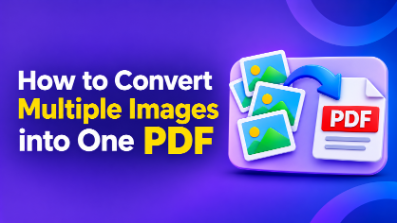
By converting a series of images into a PDF, you can combine the images into one single document. This means that you can easily open, download, print and even share.
The best thing is that you don’t need any advanced technical skills or expensive programmes. You can use free online tools or those available on your computer and smartphone.
Below you will find a guide on how to convert multiple images into one PDF, how to order your pages, adjust settings, and create a document ready to be shared.
Why you should combine multiple images into a PDF
Combining multiple images into a PDF makes it easier to manage documents. This helps keep similar images together and avoids sending each image individually.
Students can combine handwritten notes, class notes and project pages. When applying for a job, you can combine certificate, ID and application images. Office workers can combine scanned receipts, invoices and documents. Business owners can combine product photos, reports and supporting documents. For personal use, you can store important documents.
PDF’s are easy to open on most devices including computers, tablets and smartphones.
How to Combine Multiple Images into a PDF Using Online Tools
One of the easiest ways to combine multiple images into a PDF is by using an online image to PDF converter. You can perform this function within your browser.
We will be using PDF24 Tools.
Step 1: Open Image to PDF Converter
Open your browser (Google Chrome, Microsoft Edge, Firefox etc.)
Go to the following website:
https://tools.pdf24.org/en/images-to-pdf
This will allow you to select multiple images and convert them to a PDF.
Step 2: Upload Multiple Images
Click on the option to select the file.
Select all the images you wish to add to your PDF. If your images are in different folders, make sure they are all in one place.
For example, if you have 8 handwritten notes, make sure you select all 8.
You can use common image extensions such as JPG and PNG. Please check what file types are accepted with your converter.
Step 3: Order the Images
Once you’ve selected your images, check how they’re ordered.
This is important as it will dictate how your pages will be ordered.
For example, if your images are five pages of a document, make sure they are ordered from 1st page to last page.
Most image to PDF converters will allow you to drag and drop your images.
Take a moment to check they’re in the right order.
Step 4: Adjust Page Settings
Before converting, check the page settings.
Depending on the converter, you’ll be able to adjust:
Page Size – A4, Letter or other sizes.
Orientation – Portrait or Landscape.
Margins – Add/remove margins around the image.
Image Fit – Adjust how the images fit the page.
A4 is usually a good option for school work, office work and scanned documents. Landscape can be useful for wider images.
Ensure your images are easy to read.
Step 5: Convert to PDF
Once you’ve uploaded all your images and ordered them, click ‘Convert’ or ‘Create PDF’.
This will combine your images into a single document.
It may take slightly longer to process depending on how many images there are and the size.
Step 6: Download and Check PDF
Once your images have been converted, download your PDF.
Open the document and ensure:
All your selected images have been added.
Images are in the correct order.
Text and important information can be read clearly.
Images have not been accidentally turned sideways or cut off.
Document can be opened without any issues.
You now have all your images combined into one PDF. You can save, print and share your document.
How to Combine Images into a PDF on Mobile
You might not always have access to a computer. However, you can use your smartphone to create a PDF containing multiple images.
iPhone
Those using an iPhone can use the built-in ‘Files’ and ‘Photos’. Alternatively you can use an online image to PDF converter.
One easy option is:
Open photos.
Select your images.
Tap the share icon.
Ensure Print is an option.
Two finger zoom to open the print preview.
Tap the share icon.
Select ‘Save to Files’.
Check your document to ensure all your selected images are within.
Android
Those with an android can use online converters.
Open Google Chrome.
Go to an image to PDF converter.
Select multiple images from gallery/file manager.
Order your images.
Choose appropriate page settings.
Tap ‘Convert’ or ‘Create PDF’.
Download your document.
Depending on your phone brand and android version, options may vary.
How to Combine Images into a PDF Without Installing Any Software
Using an online converter is a great option if you don’t want to install any extra programmes. All you’ll need is an internet connection and browser. Select your images, order and adjust settings. Then download your PDF.
However, you should be cautious about using online tools. Avoid using them for any confidential documents, financial documents or personal information. Ensure you know how they handle your privacy.
Instead, you can use an offline programme such as PDF24 Creator (Windows). This allows you to import images and create PDF documents.
Top Tips for Creating a Quality Document
Combining images is easy, however there are a few tips to ensure you create a quality document.
Use high quality images – Ensure your images are clear. If the original image is blurry then text may be hard to read.
Order your images – Always ensure your images are in the correct order. Especially when completing assignments, applications and multiple pages.
Choose the correct page size – Choose an appropriate page size. A4 is great for most documents. Landscape can be useful for wider images.
Don’t compress images – Some converters will compress your images to reduce the size of your PDF. If you have important text or high quality images, make sure to use appropriate quality settings.
Give your document a name – Don’t use random numbers. Give it a name that describes what it is, for example University_Assignment.pdf or Monthly_Receipts.pdf.
Check the size – Some websites have strict size requirements. Sometimes your document may be too big. You can compress your document but ensure text and images can still be read.
Common Issues
Occasionally you may have issues when converting multiple images to a PDF. Below are some common issues and how you can fix them.
Images aren’t in the correct order – Order your images before converting. Once downloaded, check the order.
PDF is too large – Reduce the size of images unnecessarily. Use an appropriate PDF compressor.
Images look blurry – Use high-quality images. Don’t compress too much.
Images are sideways – Rotate images before uploading. Use a converter which allows you to rotate images.
Not all images are included – Ensure all your images were selected.
PDF won’t open – Download your PDF again. Ensure it has been converted properly.
By carrying out these simple checks you can avoid common mistakes and create an organised PDF.
Final Thoughts
Combining multiple images into a PDF is an easy way to organise your images. Whether you’re a student, office worker or keeping personal records, having a single PDF will make things much easier.
You don’t need to pay for any expensive programmes or have advanced technical knowledge. By using a free online image to PDF converter you can select multiple images. Order the images, adjust page settings and download your document.
By following the steps above and checking your final document you can organise all your important images into one easy to use PDF.