How To Reduce PDF Sizes For Email
You've finally created your important document, added it as an attachment, and clicked send. Yet suddenly you get an error saying the file you're trying to send is too large. This can happen whether you're sending a job application, business reports or scanned documents. A large PDF can be frustrating.
The good news is that you don't always have to cut pages out or compromise the quality of your document.
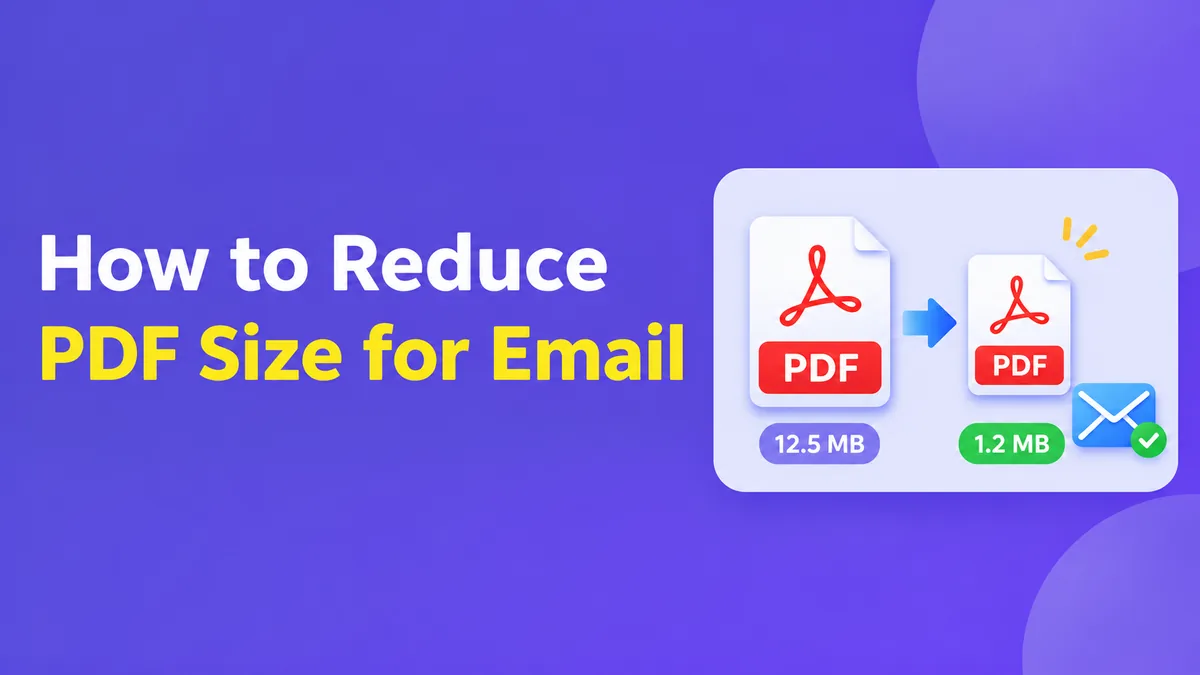
Knowing how to reduce the size of a PDF for email can help you send documents faster, save space in your storage, and avoid issues with attaching large files. You can easily compress your PDF from your browser, computer or even a smartphone.
Here's how to compress your PDFs whilst keeping them easy to read.
Why Is My PDF Too Big To Email?
PDFs can contain a variety of things including text, images, graphics, fonts and scanned documents. All of these can add to the size.
A simple text based PDF may only be a few hundred KB whereas a scanned document with high quality images could be several MB.
One of the main reasons your file may be large is the quality of images. If you've scanned your document with a higher quality setting than needed then there will be a lot more image data in your PDF than needed for general reading.
Fonts can also be embedded, you may have duplicates and there may be unnecessary information.
Understanding why your PDF is large will help you decide on the best way to compress your PDF.
What Is The Attachment Size Limit For Email?
Email services have limits on how large your attachment can be.
Generally, you can attach up to 25MB in Gmail. Larger files tend to be shared via Google Drive.
Attachment size limits can vary in Outlook depending on your account, application and organisation. Some Outlook.com accounts have a limit of 25MB, however your workplace administrator may have set different limits.
Your attachment can also increase in size when sent.
Even if your PDF is just under the attachment limit, you may experience issues.
To ensure you can reliably share your document, you may want to keep your document well under the limit.
How To Reduce PDF Size Online
Using an online PDF compressor can be a great way to reduce the size of your document. Most work in a similar way.
Go to a reputable PDF compressor website. Choose to upload your PDF and select the file you want to compress.
Some services will offer different levels of compression. You'll often have options like basic compression, recommended compression or strong compression.
If your document contains images, diagrams or small text choose a medium compression.
Once compressed, download your PDF and check the size.
Open the document and check any important pages before emailing.
Whilst online compression is a convenient option for general documents, you shouldn't upload any confidential information. If your document includes financial statements, ID, contracts or confidential business information you may want to compress it offline.
How To Compress A PDF On Windows
If your original document was created in Microsoft Word open the document.
Click save as or export. Select PDF and look for an option to optimise for minimum size or for online publishing.
The wording may differ depending on your version of office.
This can help you create a smaller PDF from your original document. Often keeping a higher quality than if you were constantly compressing your file.
If your PDF doesn't have an editable version, use a reputable PDF editor on your desktop. Look for optimisation options.
Look at the settings to see if you can compress images, fonts and remove any unnecessary resources.
Although you can create PDFs using Microsoft Print to PDF it isn't designed to compress your file. You can't guarantee it will be smaller.
How To Reduce PDF Size On Mac
Preview comes with Mac computers. It can help you reduce the size of your PDF.
Open your document and click file then export.
If needed select PDF. Look for the Quartz Filter option.
Select reduce file size and save with a new name.
This can really help reduce some image heavy documents. However, the default option may reduce the image quality quite a bit.
Always check your compressed document.
If your diagrams, images or scanned text are blurry you may want to use a PDF editor with more detailed compression options.
Try not to edit your original document.
How To Compress PDF Files On Android And iPhone
You can reduce your PDF size for email on your smartphone.
On Android you may have a reputable PDF editing application. Look for compress PDF or optimise PDF.
Open your document and select the compress option. Select an appropriate quality setting. Save your compressed document.
On iPhone your options will depend on your iOS version and applications. Some will have options to optimise your PDF whilst others will require a PDF application.
If your phone doesn't have compression options you may find using a reputable browser based service is a convenient option for non-confidential documents.
Always check your PDF opens correctly.
Compression on your mobile device can be really helpful if you need to submit scanned forms, assignments or documents.
How To Reduce PDF Size Without Losing Quality
One of the most common worries when compressing a PDF is that it will become blurry.
Depending on the document and the compression method you use this can vary.
Lossless compression can help remove any unnecessary data or organise the file better. No changes will be made to the visual appearance.
However to significantly reduce image heavy PDFs you may need to reduce the image quality. This will involve lossy compression.
If your document is text heavy you will usually want to keep the text clear.
When scanning documents select settings to keep your small text readable.
Don't constantly compress your file. Every time you use lossy compression you may lose some quality.
Instead go back to your original document and experiment with the settings.
Reduce Image Sizes
Often the majority of your storage will be taken up with large images and scans.
If you still have your original files, reduce the image sizes.
For example, if you took a high quality photo you may not need all the pixels. If your document is going to be viewed on screen then you don't need such a high quality image.
Select an appropriate image quality.
Colour images can often be compressed efficiently with JPEG. Graphics with text or crisp lines may need different settings.
Don't scan your document with a high quality setting if you don't need to. This can increase the file size.
If colour isn't important then you may want to scan in greyscale.
This is often a better option than constantly compressing your large PDF.
Remove Unnecessary Pages And Information
Sometimes the easiest way to reduce the size of your PDF is to remove unnecessary information.
Look through your document and remove any duplicate pages, blank scans, old attachments and unnecessary images.
If you're sending a job application make sure your PDF only contains the documents requested.
Some PDF editors will let you remove embedded attachments, unnecessary resources and metadata.
Take care when editing signed documents, official documents and interactive forms.
Removing information or recreating your PDF may cause issues with your signature, accessibility or functionality. Always keep a copy of the original.
What If My PDF Is Still Too Large?
If you've tried to compress your PDF but it still isn't small enough, you may want to try a different method. Upload your PDF to a reputable cloud storage service and share the link.
Services such as Google Drive and OneDrive can help you share your files. They can help with large files that would otherwise be over the usual attachment limit.
Carefully check your sharing options. If your document contains private information.
If your document is large you may want to split your document into smaller PDFs. This will depend on if your recipient is happy with receiving multiple attachments.
However, if your email service has a limit on the total size of your attachments then it won't help.
If it's an important business document ask your recipient if they'd prefer to use a secure upload portal or other approved method.
Common Mistakes When Compressing PDFs
Using maximum compression without checking the quality can make scanned text hard to read.
Uploading confidential documents to unknown sites.
Don't overwrite your original PDF. This is especially important if it contains official information or signatures.
Changing the name of your PDF or putting it in a ZIP file won't really make much of a difference. Many PDFs are already compressed.
Always check your finished document.
Make sure it has the correct number of pages, images are clear, text is readable and the file itself is the correct size.