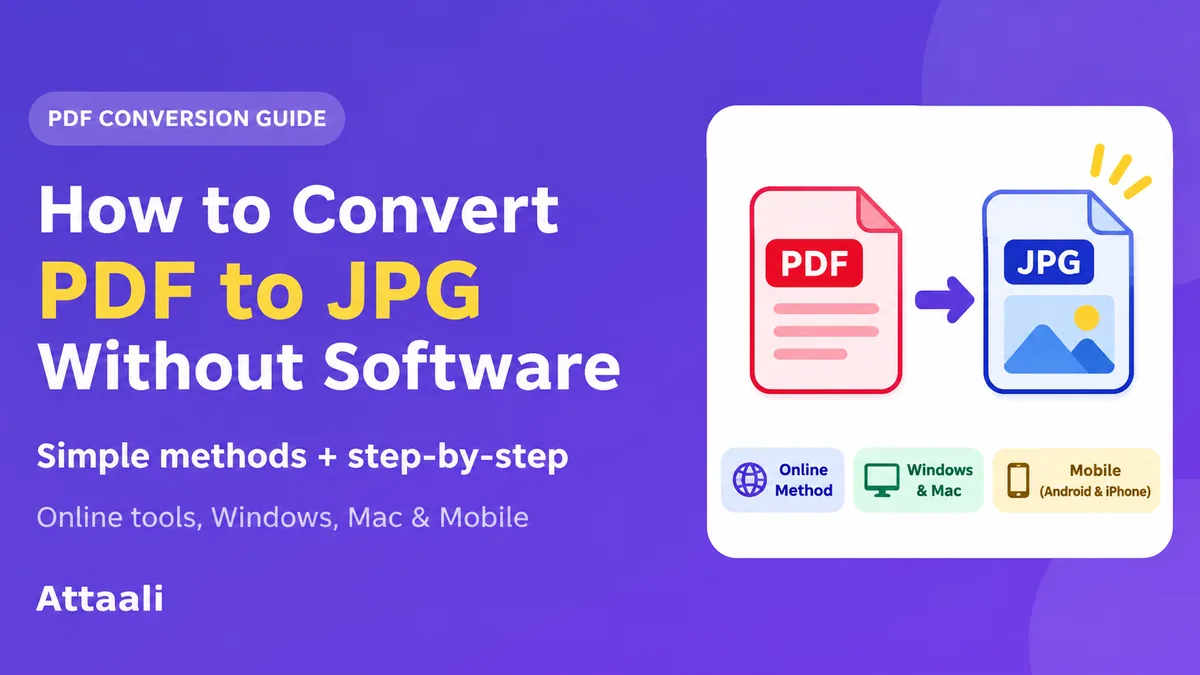
How to Convert PDF to JPG Without Software
You’ve got some PDF to convert, whether it be a certificate, chart or page that you need to upload. However, the website wants it in JPG format. And you don’t really want to install extra software for one file.
Good news!
You can convert PDF to JPG without installing any software. It can be done via Your Browser. If you only have one or two pages to convert, you can use the native tools on your Windows or Mac. You can even use your phone.
It’ll depend on whether you want to convert an entire page or embedded photo.
What Is The Difference Between PDF and JPG?
PDFs are designed to display documents with text, images and formatted pages. JPGs are image files and are normally used for photos.
When you convert a PDF page to JPG it will become a flattened image. Whilst this makes it easy to view and share you won’t be able to edit the text directly or select it.
Whilst it will still look like the original, you won’t be able to click into the paragraphs and change them.
JPG and JPEG are the same thing. If you’re asked to upload a JPEG file to a website, a correctly created .JPG file should work.
Convert PDF to JPG via Online Tool (Browser)
There are a number of online tools available that you can use to convert your PDF to JPG. These can be used on Windows, Mac and many phones.
Adobe Acrobat’s online tool can be used to convert your PDF to JPG.
In general:
- Open up the Adobe Acrobat official online tool.
- Click Select a file and find your PDF.
- Allow the website to upload and convert your document.
- Select JPG from the drop down menu.
- Click convert and download your image(s).
- Open up your converted file to check everything looks okay.
Depending on the tool, there may be a range of options, login requirements and limitations so follow the prompts.
This is a quick way to convert a public brochure or normal class handout. If you’re converting a confidential file, use one of the below local tools.
Convert All Pages in PDF Using iLovePDF
If you have a 5 page PDF and need to convert it to 5 separate JPGs it can be very tedious to take screenshots.
However, there is an option on iLovePDF’s PDF to JPG tool. They have the ‘Page to JPG’ option. Alternatively, you can use the ‘Extract images’.
To convert your pages:
- Go to the official iLovePDF tool.
- Select your PDF from your device.
- Make sure you have ‘Page to JPG’ selected.
- Select a quality option.
- Click Convert to JPG and download your converted file.
If you have multiple pages, you may get a ZIP file with all your images in. Unzip the images.
Only use the ‘Extract images’ option if you want the Images From within the original PDF. This is a small difference but can help to prevent a surprisingly common mistake.
Some online tools may have size or free use limits. Check what the current options are.
Convert PDF Page to JPG on Windows
If you don’t want to upload your document, you can use the Snipping Tool on Windows. This will allow you to capture what you can see on the screen without having to install anything.
Open up your PDF in Your Browser or preferred PDF reader. Make sure your page is as big and clear as possible. Press Win + Shift + S on Windows 10/11. Select the rectangular option and drag over your page.
Open up your snip in the Snipping Tool. Click Save as and select JPG or JPEG (if available). Give your file a name and choose where to save.
This is a great way to convert a single diagram, receipt or page. However, it is technically a screenshot. This means that any small text may appear blurry and parts may be cropped. For high quality printing or multiple pages, use a proper page converter.
Convert PDF to JPG on Mac with Native Tool
Mac users are lucky because there is a straightforward native tool. Preview allows you to export your PDF page into an image format. This includes JPEG.
Open up your PDF in Preview. If you have multiple pages select View > Thumbnails and select the page you want.
Click File > Export. Select JPEG from the Format drop down. Adjust the quality or resolution if possible. Save your file.
This will give you an image of the page you wanted. Repeat if needed.
This is a great option for confidential documents as you can keep everything local on your Mac. Make sure you’ve selected the correct page before saving.
Convert PDF to JPG on Android/iPhone
You can use Your Browser on your phone. Find a reputable PDF to JPG converter. Select your PDF from your files. Convert to page. Download your converted file.
On your iPhone, your downloaded files will normally be in your Files app. Android devices will generally have them in Files or your device’s download manager. If you have multiple JPGs in a ZIP file, unzip it.
If there’s only one page visible, you can take a normal screenshot. However, these are often saved as a PNG or other format. If the website specifically wants a JPEG file, check what the file type is and convert it if needed.
Depending on Your Browser and device, your menu may look slightly different.
How to Get a Clear JPG from PDF
Once you’ve converted your file you may not be happy with the results. The text may look blurry, graphics pixelated and the file may be much larger than expected.
Depending on the quality of your original PDF and how high the resolution was, you’ll get a better quality conversion from a clear digital file. A blurry scan won’t look great.
If your converter has options for resolution, the higher the resolution the clearer the image will be. However, it will be larger. 150 DPI may be enough for normal screen use. If you’re looking to print, 300 DPI can be useful, depending on your source.
The quality of your JPEG will affect how clear your image looks. If there’s small text or fine lines in your document, select a reasonable high quality.
If your original page is low quality, don’t expect to get any extra detail. If you couldn’t read the original, you probably won’t be able to read the JPG.
Is It Safe To Convert PDF Online?
It will depend on what you’re converting and the tool you’re using. In general, you’ll need to give the online converter access to your file. Unless they specifically state that it will convert locally on Your Browser.
If you’re converting a public flyer, this may be okay. However, if you’re converting a bank statement, ID, medical records or a confidential business contract it may not be. Use reputable tools. Read up on their privacy policies. Avoid any sites that ask for unnecessary permissions. Try and use a local option if you need to convert something private.
If your PDF is password protected, you may need permission to convert it. Don’t try to use a converter to get round any extra security on material you shouldn’t have access to.
Common Issues With Converting PDF to JPG
My JPG is too large. Lower the quality of your JPEG slightly or reduce the output resolution. Make sure any important text is readable.
Only one page was converted. This may have been due to using a screenshot or exporting one page. Use a tool that has an option to convert full pages.
I’ve got a ZIP file. Open up or extract the files. Your separate images are likely to be in the ZIP.
My image looks stretched or cropped. Don’t adjust the width and height. Keep it as it was.
The text isn’t selectable. This is expected as you’ve converted an entire page of PDF to JPG. Keep your original PDF if you need the text to be searchable/editable.
Final Thoughts
You don’t need to install any software to convert your PDF to JPG. Use a reputable online converter for full pages. Or use the handy native tools on Windows (Snipping Tool) and Mac (Preview).
If you’re using a phone, a browser based tool should be enough. Make sure the file type is correct and if there are multiple pages they may be in a ZIP.
Most importantly know what you need. Are you wanting an image of the entire page, or embedded image? Choose the appropriate method. Keep your confidential documents safe. Check your final JPG.