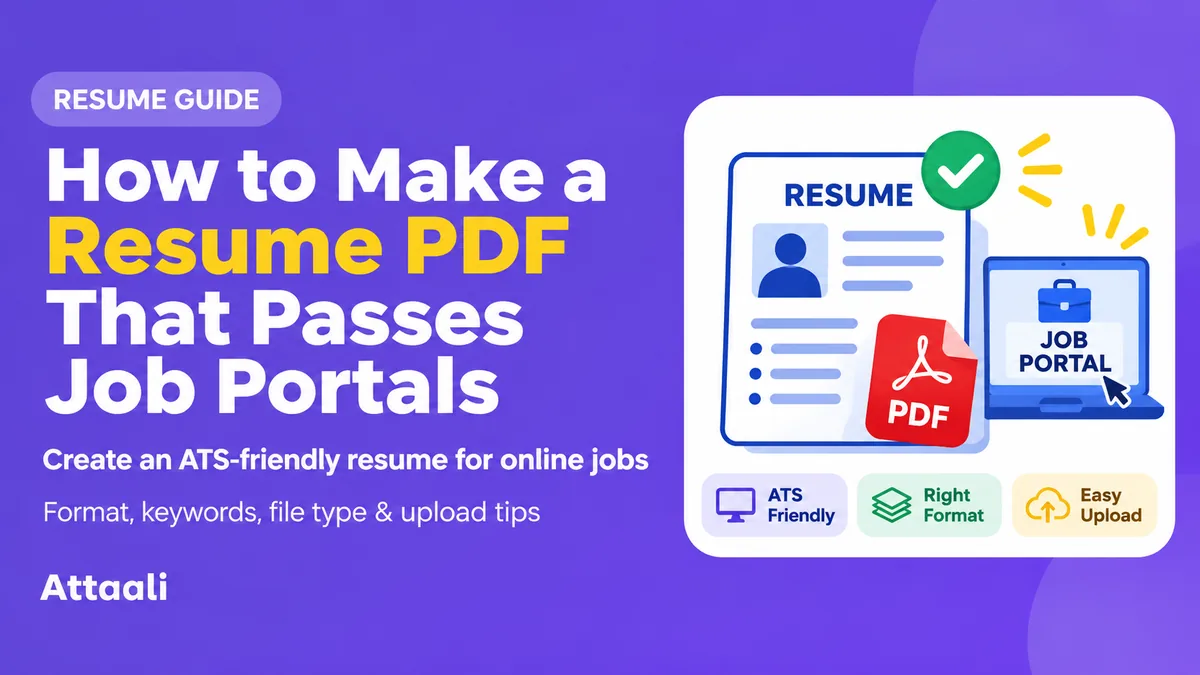
How to create a Resume PDF that works with Job Portals
After spending hours perfecting your resume, you upload it to a job portal. However, your resume does not show your experience in the correct fields or your qualifications are not being picked up.
This can be frustrating as your resume would look fine on screen.
This can be caused by the format your resume is in. How it was designed and exported or how your resume is being read by the employer.
By creating your resume in the correct PDF format, you can avoid these issues. Below we have shown you how to create a resume that is easy to read and clean, making it easier for recruiters and the software they use.
Why some Job Portals have trouble with Resumes
Many employers use an application tracking system (ATS).
This will often pull out your contact information, roles, dates, education and skills. Some will allow recruiters to easily search and filter candidates based on the job criteria.
However, everyone will use different systems and the formatting on your resume could make it messy for the software to read. For example, if you have created a two column resume, your skills may be next to your experience. If the system does not pick up the order of the two columns, it can cause confusion.
The aim is not to trick the algorithm but to make it easy for the system to pick up your qualifications and for the recruiter to understand.
Should I use a PDF for my application?
PDFs are very common as they keep your resume looking the same on any device. This means your headings, spacing and page breaks are less likely to change.
However this is not always the best option.
Most of the modern ATS systems will be able to read a properly made text based PDF. However, some employers will prefer the resume to be in Microsoft Word. This is because the DOCX format will be picked up more efficiently.
Always follow the guidelines of the job portal.
If the employer asks for a PDF then you should provide one. If the portal asks for a DOCX then provide that. If both are acceptable then often a simple text based PDF will work. However, if you are unsure then a DOCX is probably a safer option due to some older systems.
Try to keep both the editable and PDF versions of your resume.
Keep it simple with one column
You do not need to use a fancy resume with lots of sidebars.
For most online applications, a one column resume is the safest option. This will keep your information in a simple order.
A good structure will be:
- Name and contact information
- Professional summary
- Work Experience
- Education
- Skills
- Certifications / Projects (if applicable)
Use clear headings.
Avoid using boxes, complex tables or floating text for any important information. Some systems may have trouble understanding the order.
Keeping your resume simple will mean recruiters can easily scan through. Your resume should be easy to understand and not get lost in the formatting.
Use simple fonts
Whilst using a fancy font can make your resume stand out, it is best to keep it simple.
Use a standard font such as Arial, Calibri, Aptos, Georgia or Times New Roman.
The font size for the body of your resume should be around 10-12 points. The headings for each section should be slightly larger. Ensure there is space between each section.
Bold text can be used for your roles, employers and to highlight some headings.
Do not make your name or headings into an image. It should still be real text.
Do not reduce the font too much to fit your resume onto one page. Often it is better to have a two page resume that is easy to read.
Add your contact information
Your contact information should be at the top of your resume.
This should include your full name, professional email address, easy to reach phone number and your city/region.
You can also add your LinkedIn and/or portfolio link if it would help your application.
Avoid putting your key contact information in the header/footer of your resume. Some systems may not pick it up.
If you are applying internationally, include a working phone number with the correct country code (for Pakistani applicants).
You will usually not need to include your CNIC number, marital status or full home address unless asked by the employer or it is required for a legitimate reason.
It is a good idea to keep your personal information private if it is not needed. Especially if you are uploading your resume to unknown websites.
Use Keywords From the job description
If you are applying for a digital marketing role and they specifically ask for SEO, Google Analytics and Content Planning then include these if you have actually used them.
Instead of:
For example, instead of writing:
“Responsible for online marketing activities.”
You can say:
You could write:
“Managed SEO content planning and monitored website performance using Google Analytics.”
This will show you have experience.
Use the terms employers will recognise but do not copy the whole job description.
Overstuffing your resume with keywords can make it hard to read. Also there is no guarantee it will help. Ensure your qualifications are accurate.
Show what you have achieved
If your resume is full of "worked on projects" and "handled customers" then the employer will not know much about you.
Try to show what you have done.
For example:
“Created a new inventory tracking process that reduced weekly reporting time by three hours.”
This tells the reader what you did and the outcome.
If you do not have exact figures then just state that you improved something.
Students and fresh graduates can include projects from university, internships, voluntary work, technical skills and any relevant courses.
This will help the employer understand what you can offer.
How to save your resume as a PDF in Microsoft Word
Once your resume is ready, you can export it directly from Word.
- Open your resume in Word.
- Go to File and click Save As or Export.
- Select PDF.
- Choose where to save your resume.
- Click save and open your PDF.
Ensure the text is clear and looks as you expect.
Keep your original Word document so you can update your experience or tailor your resume for another role.
How to create a resume PDF in Google Docs
Another easy way to create a PDF is using Google Docs. Especially if you do not have access to Microsoft Word.
- Open your resume in Google Docs.
- Go to File > Download > PDF Document (.PDF).
- A copy of your resume will download.
Open the file. Check the formatting. Ensure the page breaks, spacing, bullet points and contact information looks good.
Google Docs can also be useful for keeping your resume as an editable master document.
If you are using a shared or public computer make sure to log out of your Google account.
Ensure your PDF has text
This is one of the most important things to check.
Open your PDF. Highlight some text using your mouse. Copy and paste into a simple text editor.
If it shows the words correctly then it is a good sign your resume has text that can be picked up.
If nothing can be highlighted then it is likely to be an image.
Some design sites will export your resume as an image, even though it will have a .PDF extension.
A scanned PDF can be tricky for the application system to pick up. Try to recreate your resume in a word processor or ensure you have a reliable text based export.
This is not a guarantee your resume will be compatible with an ATS but will show any glaring issues.
Check the file size and name
Some job portals will have limits to how big your resume can be. If you have included large images, backgrounds or extra graphics then your resume may be too big.
A simple text based resume will usually be a small file.
If your resume is unusually large then check to see if there are any images included. Compress your resume.
Give your resume a clear name:
Ali_Khan_Resume.PDF
If you are applying for a specific role then:
Ali_Khan_Software_Developer_Resume.PDF
Avoid using confusing names:
resume-final-new-2.PDF
Never assume all portals will accept the same file size. Always check the instructions and follow the rules.
Double Check your resume
Before applying, double check your resume.
If possible open your PDF on another device. Ensure your name, contact information, dates and headings are correct.
Highlight some text. Ensure the links work and no important sections have been moved to an almost blank page.
When the job portal auto fills your application, ensure all of the fields have been filled in correctly.
If your previous employer is listed under Education or your phone number is missing then update this information.
Some portals will allow you to manually update any information. Take this opportunity.
An ATS friendly resume will not guarantee you an interview. Your experience, qualifications and how the employer select their candidates will still matter.
Final thoughts
Creating a resume PDF will not involve any hidden templates or trying to outsmart the recruitment software.
It involves creating a resume that shows your qualifications.
Use a simple layout, standard fonts, meaningful headings, relevant keywords and accurate achievements. Ensure it is exported as a text based PDF. Check that the text can be copied and follow the employers file type.
Most importantly, double check your application.
Taking a few extra minutes will ensure your resume does not have any formatting issues that may hide the experience you have worked hard on.