How to Convert Text to PDF on Mobile Devices
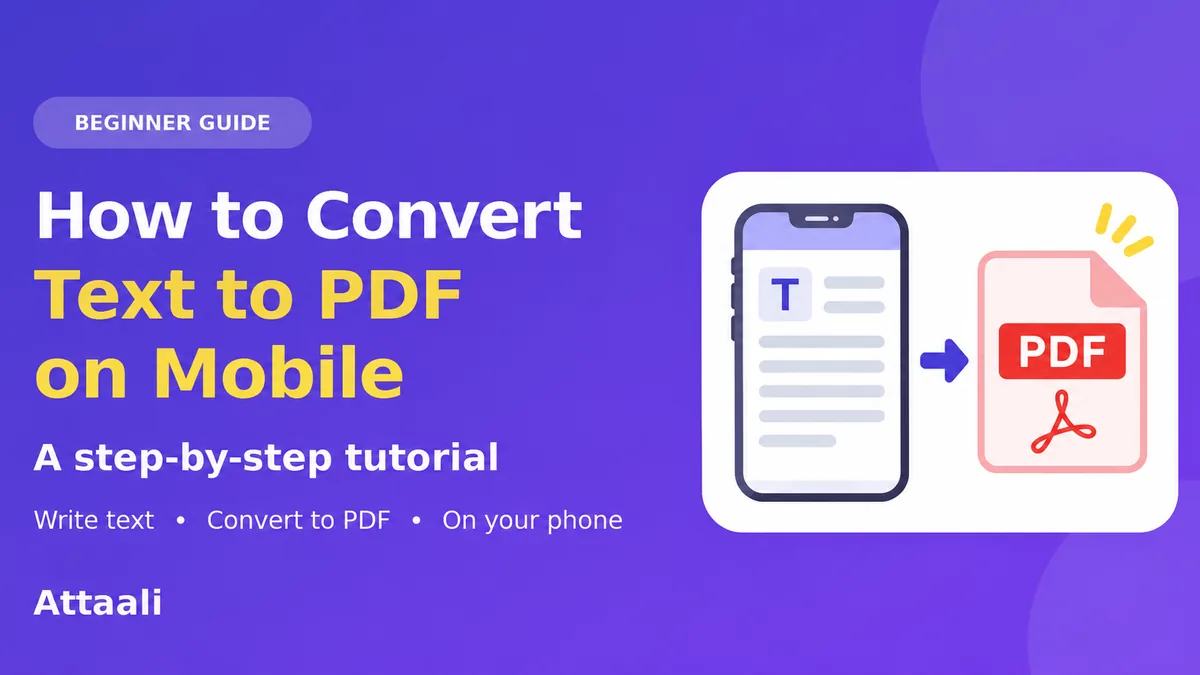
You have finished typing up an assignment on your phone. However, your teacher wants it in PDF format. You look around to try to find a laptop to do so but wonder if you can do it on your phone.
Yes, you can!
Knowing how to convert text to PDF format on your phone can be very useful. This can be for students, job seekers, freelancers and anyone who uses documents on the go to turn notes or copied messages into easy to share and print files.
Which method you use will depend on what device you have (Android or iPhone) and where your text is. Below are some simple methods.
Why Convert Text to PDF?
Text can easily be edited but can be difficult to ensure consistency between different applications. A PDF ensures the document you are looking at is exactly as you have set it out with page breaks, headers and correct spacing.
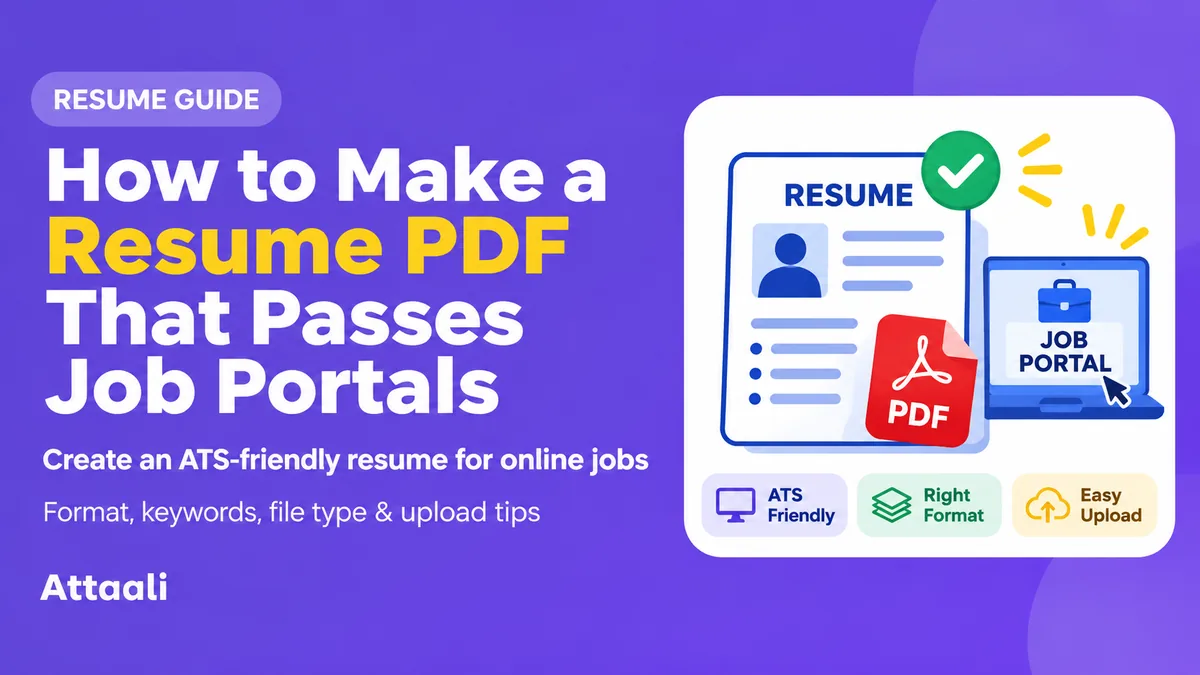
Getting your CV into the right format will make it easier to read and print.
PDFs can be a great way to format your assignments, letters, meeting notes and application forms. You can then attach them to an email, or upload them to a website which asks for a PDF.
Just remember that a PDF doesn’t mean your document will be private or un-editable. It just means you have a reliable document format.
Method 1 – Convert Text to PDF on Android using Google Docs
Google Docs is a great option if you want to type, copy and paste or format your text.
To do this;
- Open Google Docs on your Android device.
- Either create a new document or open an existing one.
- Type in your text or copy and paste from another app.
- Add your title and any paragraph spacing.
- Click the three dots and look for ‘Share & export’.
- Click ‘Save as’, then click ‘PDF Document (.pdf)’ if available.
- Save or share your PDF.
Depending on the version of the app you may have different options to share your PDF.
Students can simply copy and paste their essay into Google Docs, add headers and then export.
Google Docs can also import common text file types like TXT and DOCX. Useful if you already have the text in a file.
Method 2 – Save as PDF using Android Print Feature
You don’t always need a dedicated PDF converter.
Many apps on Android allow you to use the print feature. This can allow you to save your text as a PDF file.
Open your text/document in an app which allows you to print. For example, in Google Docs click the three dots menu and click ‘Share & export’, then ‘Print’.
Click the print button and click the printer drop down box. From here click ‘Save as PDF’. Once you are happy with the preview click the PDF button or save icon. Choose where to save your document.
Great if you have a print function but no obvious export button.
Not all note taking/apps will have print functions. If yours doesn’t then copy your text into a document editor.
Make sure you have the right page breaks, as your text may take up more than one page.
Method 3 – Convert Notes to PDF on iPhone without a Converter
If you use an iPhone, Apple Notes is a great place to start.
If you have a note containing a summary of a meeting, or a list of instructions saved in your notes you can export your note.
To do this;
- Open the Notes app and select your note.
- Click the share button.
- Click ‘Markup’, you may need to click more share options to find it.
- Ensure you are happy with your PDF preview. Only add annotations if needed.
- Click done and follow the save options.
Depending on your iOS version the buttons may change.
However, if your note contains a multi-page scanned document or PDF attachment, when exporting your note from Apple you may only get the first page of your attachment. Make sure you check your final document.
For regular typed notes this is a quick way to create a PDF without having to use a new converter.
Method 4 – Create PDF using Apple Pages
Sometimes you may want to make your note look a bit neater.
If you are creating a formal letter, application for an internship or class report using your iPhone then Pages gives you more control over your document with headers, fonts and page formatting.
Open Pages and create a new word document. Paste in your text or type. Format your text as required.
Once you are happy with your document, click the menu on your document and click ‘Export’ or ‘Export & Send’ (depending on your version). Then click PDF. Save or share your document.
Your original document will still be available to edit.
You could export an application letter and send it via email.
This is a great option if you don’t want your note to look too informal.
Method 5 – Convert Text using Microsoft Word on your Phone
If you are already using Word for your assignments/office work then you can usually create your PDF within the app.
On Android open your document and select ‘Print’ from the file or three dots menu. Choose ‘Save as PDF’ from the printer options. Name and save your document.
On iPhone Microsoft have a documented process. Open your file and select ‘Export’ from the menu. Choose ‘PDF’. Choose where you want to save it.
This is a great option as you won’t have to copy your lengthy document into another editor.
It will also keep any intentional formatting like lists, headers and page breaks. However, make sure you check your PDF, especially if there are tables or unusual fonts.
You won’t need to use another converter for your Word document.
Convert WhatsApp Message or Copied Text to PDF
Sometimes your text may not be in a document. This can be a long message in WhatsApp, draft email or copied notes from a website.
The easiest way is to copy the information you need and paste it into Google Docs, Pages or Word.
Remove any extra line breaks. Depending on the message, remove any irrelevant times from your chat. Add a descriptive header.
Export your document using the method above for your phone.
If you have an official conversation make sure you keep the original meaning.
Whilst putting a screenshot into your PDF isn’t the same as having editable text, usually putting your text into a document will make it easier to search through.
Tips for Creating a Neat PDF
As long as you follow the below tips you should have a good PDF.
Use a readable font, meaningful headers and leave plenty of margin. For most everyday documents a simple black and white layout will be fine.
Make sure there isn’t any cut off text. Sometimes long links, big tables and unusual symbols can cause issues.
Give your file a clear title. This will make it much more useful than ‘Document123.pdf’. Especially if they are downloading multiple attachments.
If your file has to be a certain size, check the properties. Whilst text based PDFs are usually quite small, adding images and special fonts can increase the size.
Open your PDF and scroll through each page to make sure everything is included.
Are Online Text to PDF Converters Safe?
Whilst online converters are handy, by uploading your document you are sharing it with the site.
Try not to share any private addresses, personal information, contracts, medical information or confidential work documents with unknown websites.
Where possible use a trusty app on your phone or an offline export option.
Avoid sites which ask for unnecessary permissions or ask you to download unrelated software.
For general notes, if you know how they handle your privacy then using an online converter in your browser may be fine. However, for anything sensitive it is usually better to keep it on your device.
Final Thoughts
Converting text to PDF on your phone is actually easier than you might think. Using Google Docs and the Print feature (Save as PDF) on Android covers a lot of common scenarios. Using Notes and Pages on your iPhone can turn everyday text into shareable documents.
Microsoft Word is another familiar option.
Just make sure you use the right method for your text.
Adding a clear header, ensuring your layout is correct, saving your PDF and opening it once will help to reduce any avoidable errors. Whether you are submitting an assignment or sending a document for work.
Your phone can do it! Just make sure to use the right export option.